Author: Christopher Lister

  • Blogging and Online Writing Meets Many LA PLO’s

    How Does Blogging and Writing Online Meet British Columbia’s -Prescribed Learning Outcomes?

    Grade 2:

    • B4 – view and demonstrate comprehension of visual texts (e.g., signs, illustrations, diagrams)
    • B7 – use strategies after reading and viewing to confirm and extend meaning
    • B8 – respond to selections they read or view
    • C2 – create informational writing and representations about non-complex topics and procedures
    • C7 – use writing and representing to express personal responses and opinions about experiences or texts

    Grade 3:

    • B2 – read fluently and demonstrate comprehension of grade-appropriate information texts
    • B4 – view and demonstrate comprehension of visual texts (e.g., cartoons, illustrations, diagrams, posters)
    • B7 – use a variety of strategies after reading and viewing to confirm and extend meaning
    • B8 – respond to selections they read or view
    • B9 – read and view to extend thinking
    • C2 – create a variety of clear, easy-to-follow informational writing and representations
    • C7 – use writing and representing to express personal responses and opinions about experiences and texts

    Grade 4:

    • B2 – read fluently and demonstrate comprehension of grade-appropriate information texts
    • B8 – respond to selections they read or view
    • C1 – write clear, focused personal writing for a range of purposes and audiences that demonstrates connections to personal experiences, ideas, and opinions

    Grade 5:

    • B2 – read fluently and demonstrate comprehension of grade-appropriate information texts
    • B4 – view and demonstrate comprehension of visual texts (e.g., signs, cartoons, illustrations, newspapers, diagrams, posters, videos, advertising)
    • B8 – respond to selections they read or view
    • B9 – read and view to improve and extend thinking
    • C1 – write a variety of clear, focused personal writing for a range of purposes and audiences that demonstrates connections to personal experiences, ideas, and opinions
    • C9 – use writing and representing to extend thinking

    Grade 6:

    • B2 – read fluently and demonstrate comprehension of grade-appropriate information texts with some specialized language
    • B4 – demonstrate comprehension of visual texts with specialized features
    • B8 – respond to selections they read or view
    • B9 – read and view to improve and extend thinking
    • C1 – write a variety of clear, focused personal writing for a range of purposes and audiences that demonstrates connections to personal experiences, ideas, and opinions
    • C8 – use writing and representing to express personal responses and relevant opinions about experiences and texts
  • Post # 1 of 10: Turning Journal Writing or Free-Writing ‘Online’

    There are several ways to turn the process of journal writing or free-writing from an ‘offline’ activity to an ‘online‘ activity, all of which are simple to achieve and easy to manage.

    Use one of the web2.0 tools below to start a classroom blog.  For more advanced users, use the tools below to create independent blogs for each of your students.

    Here’s a list of commonly used blogging tools:

    • Kid Blog – designed for each student to have an individual blog within a classroom blog created by the teacher
    • Edu Blogs – designed for each student to have an individual blog within a classroom blog created by the teacher
    • Blogger – designed for individual blogging
    • WordPress – designed for individual blogging


    How to set up and use the blog for student learning:

    • All the above blogs are set up in more or less the same way.  Some are designed to be use as individual blogs while others are designed for groups of blogs to be created and administered by a teacher
    • All blogs need an email address to register, and you’ll be prompted to select a title for your blog.
    • My advice is to keep the blog title simple and easy for your learners to remember.  A blog title such as “Technology Trooper’s Of 21st Century Learning” may not be the best title because in order for your learners to access the blog they’ll have to type something similar to the following into the URL box in the browser, http://technologytroopersof21stcenturylearning.wordpress.com
    • When choosing a blog title keep it short and sweet
    • You’ll also be asked during registration for a username and password.  Both pieces of information are required to access, manage, and control the blog once it’s live

    Two Types Of Blogs And How To Use Them:

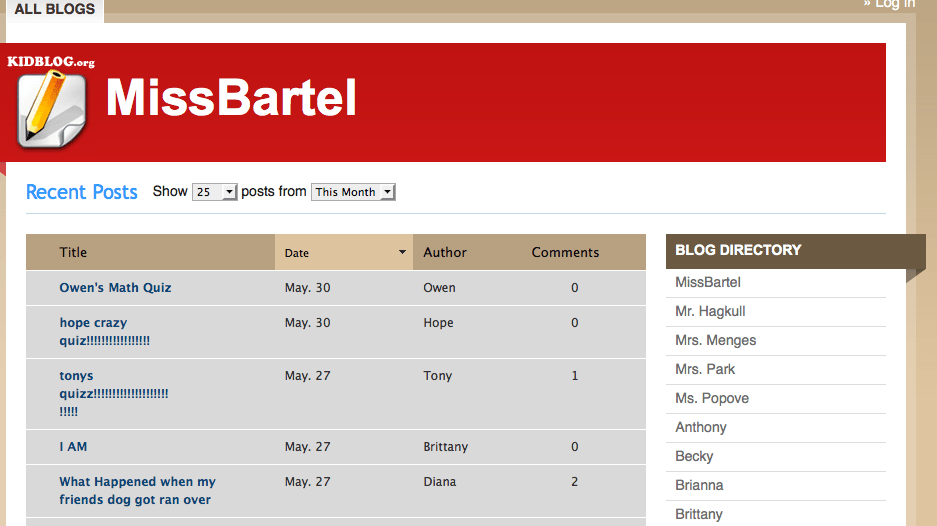
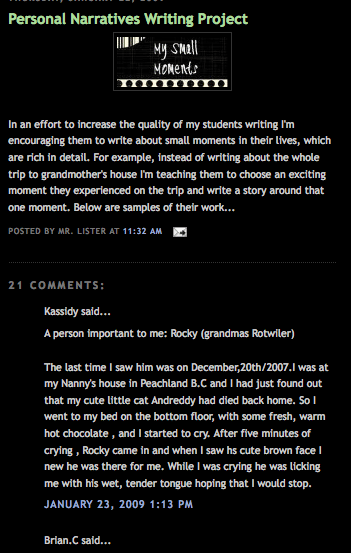
    1. Teacher creates one blog for the entire class and creates content and learners to comment and respond to

    • There are numerous ways to use a blog as an ‘online’ writing tool
    • In its basic form one blog is created, a class blog, and the teacher acts as the administrator of the blog
    • As an introduction to blogging, perhaps the first half of the year, you set the content of the blogs and your learners respond to your posts
    • A post can be defined as content you create and insert (post) into your blog
    • Content can be text, images, video, audio, or a file

    See example below:

    2. Teacher creates a class blog and then creates individual blogs for each learner in his/her class.

    • This technique is regarded as blogging in its pure form.  Learners generate their own content for their blog.
    • Students comment and interact with each others blogs as well as the teachers blog
    • Students also comment and interact with blogs of other classmates

    Administering The Blog:
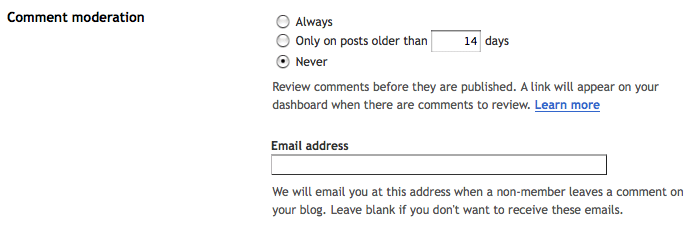
    I realize it’s super important to monitor the content that is posted on a class blog or an individual’s blog.  All of the above blogging tools offer a variety of security options to make sure inappropriate content never makes it to the live blog.  I prefer to select the option which enables all comments go through the teacher to be approved before they are posted to the blog.  This ensure the blog represents the school and all its students in the best possible way.

    See example below:

    Content Ideas For Your Blog:

    • Respond to a picture – How does the picture make you feel and why?  Create a story around the picture.  Create a personality for the person in the picture based on what the person looks like
    • Post a video from YouTube and ask learners to response.  What is Shane Koyczen saying about Canada? Use examples from the poem to support your thinking
    • [youtube=http://www.youtube.com/watch?v=r5-q6S8qJMQ]

    • Post a debate question from idebate.  Split the class into two groups, for and against, and have them post on their initial views followed by their responses to others comments on the blog
    • Use the blog as a math journal for personal reflections and word problem examples.
  • Intro To Integrating Technology Into The Classroom Series: 10 Ways To Turn ‘Offline’ Classroom Activities ‘Online’

    [youtube=http://www.youtube.com/watch?v=_A-ZVCjfWf8]

    My next ten posts, not necessarily in chronological order, will be dedicated to giving real examples of how ‘offline’ activities can be turned into ‘online’ activities to enhanced student engagement, and encourage tech-shy educators to take their first steps in integrating technology into the classroom.

    Why is it important to integrate technology into the classroom?

    • Enhances student engagement
    • Your learners are growing up in a digital world
    • Relate to your students with your understanding of social media
    • Help to make the shift for teachers away from content deliverers to content facilitators
    • Help prepare your learners for a digital future
    • Create a truly collaborative environment
    • Make the world a smaller place i.e. flatten the classroom

    Hope you enjoy the series.  I will try to link everything I do to British Columbia’s Prescribed Learning Outcomes as much as possible.

  • Do Your Learners Need A BOOST?

    This post may point you in the right direction.  There is no acronym involved here and I did not develop the program.  BOOST is academic intervention for all learners.  The initial idea came from Rebecca and Richard DuFour’s book, “Whatever It Takes: How Professional Learning Communities Respond When Kids Don’t Learn,” and a workshop they both delivered in Chilliwack, B.C.

    Following this workshop one teacher, with the help of her peers, developed BOOST and together they’ve been using the program for the last two years.  As far as I know this type of intervention is only used in one elementary school in Chilliwack, but after a recent workshop presentation showcasing its merits I’m certain it will grow.

    BOOST’s Goal:  To implement a system of effective intervention for students with their specific learning needs.

    One of the main reasons BOOST was initiated in one elementary school in Chilliwack, B.C. was because of the gaps found in their grade 5/6’s fundamental understanding of math.  Because of this teachers found students were ill-prepared for middle school math at the time.  The second reason for introducing BOOST was because their LA schedule was proving to be very chaotic and almost counter-productive because of sheer number of students in the school.

    Presently, Boost is focused on math intervention but may spread to languages arts in the future. It is designed specifically to tackle gaps in math fundamentals, such as understanding that numbers have differing value/worth depending on which place value column they are written in.    Here’s a brief introduction of how the program works.  You’ll see the successes and the challenges:

    • At beginning of year 1 students were given pre-assessment on place value.  Assessment was targeted to reveal specific gaps in place-value understanding.  First Steps In Math was used as the primary assessment tool.
    • In this particular school, with the help of school administration, 8 math groups were formed.  This helped in a variety of ways, firstly it enabled teachers to breakdown the skills required to successfully master understanding of place-value, and at the same time it allowed for groups of students who may not work well together to be separated.
    • In the 8 groups which were formed, there was an IEP group which stayed the same the whole year, an enrichment group which had already mastered the concept but worked on problem solving within a given concept (i.e. division) and the other 6 groups were divided based on the key understanding of each concept, they failed to understand.  Often, two different groups worked on the same key understandings (i.e. covered the same materials) because of the sheer number of learners.
    • After 6 weeks learners were given a post-assessment to determine they understood the new concepts taught.
    • After the results were obtained teachers decided whether to move on to a new topic o remain and explore the topic further.
    • If teacher’s decided to move on to a new topic and learners remained who had not successfully understand the previous topic, they formed the lowest group in the new topic.  For example, those learners (after 6 weeks) who continued to have difficultly with key understandings to successfully complete multiplication formed the lowest group when moving to division.

    Format In A Nutshell:

    1. Pre-test skills set
    2. Assign groups
    3. Direct teach
    4. Re-assess

    Here are a list of quote from people who have been involved with BOOST:
    “Enhances student understanding of math concepts…”  “Targets the specific problems students are having…”  “Teachers discussing assessment and teaching strategies…”  “Students who are able to work at their own level…”  “Connects different classroom teachers with all intermediate teachers…”

    At this particular school BOOST is still a work-in-progress.  Some of the challenges and areas that need to be addressed (according to the school) in order for BOOST to improve are as follows:

    • Creating the time for teachers to meet and plan outside of their lunch hours
    • Easier access to resource (resource binders, electronic resources etc..)
    • Varying teaching/learning styles
    • Generating more effective assessments to properly and easily identify where a learner is going wrong when tackling a new concept
    • Strategies to deal with students who are at the same level but for whatever reason shouldn’t be in the same class together
    • Looking to expand to language arts and beyond

    Thanks to everyone at Promontory Elementary Community School for showcasing BOOST at the recent Pro-D event.  I thoroughly enjoyed the workshop and look forward to implementing BOOST soon.  Great work guys!

  • Efficient Google Search Techniques

    Are your students getting the most out of Google search?  Probably not!  Here are some simple and efficient search techniques you could teach your students when searching/researching information on Google:

    • Phrase Search – by surrounding your search string with quotation marks (”Terry Fox Birthday”) you inform Google to search for the exact phrase in the exact order it appears between the quotation marks.
    • Wildcard (*) Search – using the wildcard (*) symbol in a search string allows Google to fill-in-blanks where it sees the wildcard symbol.  For example, the search, (Google *) will return results about many of Google’s products.
    • Exclude Search (-) – when searching, students may become inundated with results that are similar to the desired search result but are actually not useful.  For example, when searching for information on the big cat, jaguar, it is not useful for students to see search result relating to Jaguar motor-vehicles.  Use (-) directly before unwanted search string, (jaguar -cars)  Note: Multiple omissions can be made in the same string by using multiple minus signs, (bears -football -baseball -sports)
    • Search Specific Websites (site:) – Allows your students to search a specific website or group of websites for a phrase or string. For example, to search British Columbia’s government webpages on the environment use the following search string, (environment :.gov.bc.ca)
    • Definition (define:) – Uses Google to find the definition of unknown vocabulary words (define: unknown word)
    • The OR operator (OR) – Google’s default setting is to search for all words in a string. For example, the search string (Queen Elizabeth I II) will return results for both Queen Elizabeth I and Queen Elizabeth II on the same page.  The search string, (Queen Elizabeth I OR II) will return results on one or the other.
    • Calculator – Google may be used as a calculator by typing in a number sentence such as, (2*8).  Google will return the result 16
    • Unit conversion – Google search is also able to compute unit conversion.  For example the search string, (10cl to l) returns the result 0.1 litres

    Here’s a link to a selection of useful Google poster’s you could print out and display in your room/computer lab, all about solid search practices: Google Posters

  • Readability: Declutter Webpages For Easy Reading

    Roaming Educator screencast episode 1: Readability

    [vodpod id=Video.3687991&w=425&h=350&fv=thumb%3Dhttp%3A%2F%2Fcontent.screencast.com%2Fusers%2FMr.Lister%2Ffolders%2FJing%2Fmedia%2F15faf994-cf01-42eb-879f-442037106782%2FFirstFrame.jpg%26amp%3Bcontainerwidth%3D1278%26amp%3Bcontainerheight%3D979%26amp%3Bcontent%3Dhttp%3A%2F%2Fcontent.screencast.com%2Fusers%2FMr.Lister%2Ffolders%2FJing%2Fmedia%2F15faf994-cf01-42eb-879f-442037106782%2Fscreencast_1_readability.swf]

    more about “Roaming Educator Screencast 1: Readab…“, posted with vodpod

    Thanks to Jane’s Pick Of The Day, Jane Hart, I recently stumbled across browser add-on tool, Readability and I think it could have a profound impact on my learner’s ability to read cluttered webpages without being distracted.

    All too often I’ve observed my learner’s distracted by a myriad of visual stimulants when trying to read online text, particularly when reading news online.  Readability is a simple tool which can be installed on the most popular browsers: Safari, Chrome, and Firefox.

    Once installed, see tutorial above, one click of Readability button located in the toolbar area of your browser quickly removes all the distractions and presents the cleaned-up text in a format of your choice.  Your learner’s will be able to read online without being distracted and without the possibility of viewing inappropriate and unregulated content.

    Give and try and let me know what you think.

  • Guest Post: Netbooks In The Classroom

    Thank you to @MissBartel for being the first guest blogger to appear on Roaming Educator. You can reach Miss Bartel at suzannebartel (at) gmail (dot) com.

    You can read the full article here: My Experience With Netbooks In The Classroom

    Here’s the blog friendly version of My Experience With Netbooks In The Classroom:

    Having a 30 netbooks in my classroom has increased not only my students engagement in learning but my own as well.  Seeing the students so excited about learning is inspiring. The netbooks have changed the way I teach and put ongoing professional development consistently at my fingertips.

    Here is a summary of some of my challenges, successes and suggestions from the past year:

    Challenges:

    • District Policy: My biggest challenge with the netbooks has been having to go through our District Tech team for any changes and updates.  As tech is not a priority in my district, many of these roles have been cut and the tech budget has been discarded.  I wait up to 3/4 months just to have a ‘flash’ application added or updated on the netbooks.  I meet a lot of resistance in this area – when I have a problem (like the sluggishly slow wireless speed when all 30 computers are being used) that If know is easily fixed, I am told that there is no solution and no attempt is made to help out.  It would be great if the District was willing to give the ‘Tech Teacher’ on each staff the ability to make some of these simple changes.
    • Windows Updates: Window’s updates now need to be initiated by us on each computer and this takes a lot of time.  (this ties into the District Policy challenge)
    • Screen Size: Small screens make ‘artistic endeavours’ such as movie making or picture editing difficult.
    • Internet Expectations: Setting clear expectations of allowable websites for students and maintaining this expectation for all students.
    • Staff Buy-in: Although It’s wonderful having the netbooks in my classroom all the time, I would love to see other teachers embrace them as well.  It has been a challenge to gain staff acceptance of this new technology available to them.

    Greatest Successes

    • E-ngagelivewww.engagelive.net – I stumbled upon this website in my search for tips on teaching online safety.  Small groups of students interact through ’email like messages’ with ‘experts’ in the UK in regards to Internet Safety, Bullying and other topics like this.  I’ve never seen my class so engaged in reading, writing, collaborating and oral discussion with their peers.  An amazing experience!
    • Blogging with KidBlog – www.kidblog.org – A great place to host student blogs.  You can change the settings so that all comments/blogs must be approved by the teacher.  Very engaging for students.
    • Student Collaboration with Primary Pad – www.primarypad.com – I used Primary Pad as a collaboration tool with in my class as well as with a class in the UK.  The two classes were able to communicate and complete projects together using this website.
    • Professional Development
      • http://primarytech.globalteacher.org.au/tech-tools-for-teachers/ – This blog has a newsletter that you can sign up for that I have found extremely usefully.  Once a week they email you a newsletter about one web tool to use in your classroom.  It gives you step by step instructions that are easy to follow.  They’ve given me some great ideas for the classroom.
      • Twitter – I mentioned earlier, this is a great way to gain endless resources to use with your class.
    • Google Docswww.gmail.com Wow!  This has opened up my world of collaboration with students and colleagues!  I’ve used it to plan team teaching for engaging lesson with a colleague.  Students create their projects on here and then share them with me.  I edit student writing on Google docs, create online quizzes, teach data management using the forms, create online worksheets for students to complete – the possibilities are endless!
    • Other – other tools I’ve enjoyed using – Wordle, Voicethread, Rhyming Poetry, and Scratch (free animation creation software)


    Suggestions for schools interested in using Netbooks

    • Bandwidth – Consider that you will have 30 students using wireless internet at the same time and make sure you have enough bandwidth to make this feasible    .
    • Permission to Change Netbooks – Have a staff member who has admin permissions and is capable of installing simple programs onto the netbooks all at once (ie. Windows updates, flash, screen readers, and open-source software etc…
    • Student Passwords – Use simple passwords for students!  This is important for primary students
    • Transportation of Computers – House the netbooks on a portable cart so that they are easily transported around the school and can be easily charged at the same time.
    • Teacher Training – Give a school-wide workshop about basics in teaching students how to use the netbooks or have a staff member go around to each class and team teach to help encourage others to use netbooks.  Not all teachers are comfortable with new technology and need to be shown how to use the technology and why it will be useful in their classes.

  • Fractions Lesson… Argh!

    After recently delivering a disastrous split-grade (4/5) lesson on ordering and comparing fractions, I decided I needed a little extra help.  It wasn’t so much the lack of time to prepare, or that I was filling in for another teacher.  Nor was it the range of abilities in the class.  It was mainly the materials and manipulative’s available combined with some questionable directions and vocabulary in the supporting text, Math Makes Sense.  Don’t get me wrong I like Math Makes Sense and I use it regularly.  I’ve come to terms with it limitations and I typically adapt and supplement when needed.  If I had the following documents below at the time of teaching the lesson I’m sure it would have run a little smoother.  Hope they help should you choose to use them:

    Useful blackline masters when teaching fractions:

  • Absolutely Love The Idea Of E-ngage Live!

    I’m about to experiment with E-ngage Live and it may well blow my Health and Career Education Planning lessons into the ionosphere!

    E-ngage Live caught my eye with its slogan, “Bringing the community into the classroom…”  It has always been important for me to connect my learner’s with their community at every opportunity.  It is the community, after all, who will employing them later in life.  Over the years I’m found that my learner’s become complacent or isolated in school and on occasion have difficulty seeing the bigger picture.  Inviting community members into schools helps combat this.

    E-ngage Live provides a secure environment for students of all ages to practice strategies that they will need in the community.  What sets it apart from other educational platforms is it’s ability to connect small groups of students to highly skilled professional community members and subject-area specialists across the globe.

    It is hoped that by participating in an event, learner’s make sense of the community they live in and the problems they face on a daily basis. It is marketed as cross-curricular giving education relevance and authenticity.

    In the past E-ngage Live has facilitated student collaboration on a variety of topics including, citizenship, Internet safety, and road safety.  In the future, events are planned to cover topics such as, bullying, drug and alcohol issues, and environmental issues.

    It was relatively easy to sign up for an account and now I’m patiently waiting to hear back.  I’ll be sure to let you know how things go.

  • Technology Hurdles In Canadian Education

    The Canadian education system is struggling to deal with the speed and complexity of our digital age.  In some instances it looks like decision makers view technology as a passing fad that will eventually be replaced.  They’re sadly mistaken!  Canadian educator’s and the institutions which support them need to change.  The biggest change needs to be a shift in teaching pedagogy.  Educators need to move away from acting as content deliverer’s to acting as content facilitator’s in order to engage the digital learners we see in our classroom’s today.  These are some of the challenges technology savvy educators experience in Canada:

    1. Canada’s Privacy Act combined with the U.S. Patriot Act makes it difficult for Canadian educator’s to take advantage of the latest web2.0 tools with their learners.  The Canadian government doesn’t allow educators to store any type of student information on servers outside of the Canada.  You can see the disadvantage our learners face over those south of the border.  Our learners are unable to take advantage of many collaborate tools such as Google Apps, Skype, social-bookmarking, RSS feeds, blogging software, and any other web2.0 tool which requires email registration.
    2. From a more local perspective I’m not convinced School District’s put a high enough priority on finding the right people to run and maintain their IT departments.  I realize it’s a difficult task keeping current with the latest software and hardware, but the days of spending thousands of dollars on licences for Microsoft Word are gone.  Cloud computing is the future and our IT department’s need to support teacher’s with their needs.
    3. The fear of student’s owning email addresses exhibited by superintendent’s and administration’s is difficult to understand, and even more difficult to explain away when student’s ask, “Why can’t we just create Gmail accounts?”  Creating or migrating to a new email server is time-consuming I agree, but the desire to move with any type of forward momentum seems to be drastically lacking.
    4. Funding for technology and technology integration in Canadian public schools is within the control of each school.  Clearly it’s not working!  I feel there needs to be a standard established, and maintained, for technology hardware in our elementary schools, middle schools, and high schools.  The days of taking classes down to the computer lab, filled with outdated and poorly maintained machines, to work on typing skills should be a thing of the past, but it’s not.  It’s the reality in many schools.  The shift needs to be made from using technology as an add on to the tools we use to get things done.  Netbooks, interactive whiteboards, electronic projectors, and freedom to use web2.0 tools should be the norm in classroom’s throughout Canada, not the exception.

    Solutions to these issues need to be sort before we lose a generation of learner’s to boredom.  Is it possible that in the future, if we don’t address the technology divide, that some students will opt to educate themselves and severely impact public education as we know it?