Category: Collaboration

  • Attending Moodle Conference: Cell Phones and Mobile Devices in the Classroom

    Welcome back!  This week I’m participating in a week long Moodle conference on the topic of ‘Cell Phones and Mobile Devices in the Classroom.’  The conference runs from April 19 – April 24.  My personal goal at the end of this conference is decide whether or not using cell phones or other digital/Wi-Fi devices in the classroom can be successful and, engage my learners more, and really contribute to a more collaborative classroom.

    I really like this video as an introduction to the cell phone culture that already exists in our schools:

    [youtube=http://www.youtube.com/watch?v=aXt_de2-HBE]

    Here are a couple of cell phone in the classroom article to wet your appetite:

    BCTF: To Ban or Not To Ban

    • In this article the British Columbia Teachers’ Federation attempts to open the discuss around cell phone use in school.  At this point it doesn’t seem to have formed an opinion.

    CBC: Toronto students banned from using cellphones in schools.

    • Appears as though all Toronto public schools have a cellphone ban in effect, voted on by the Toronto District School Board Trustees.  I’m not sure of a lot of things with this topic but I am sure of one thing.  An outright ban on cell phones in schools will not work!

    CBC: Cellphone Jamming Principal Forced to Retreat at B.C. High School.

    • Nice Try Mr. Steven Gray but that’s illegal in Canada.  How did the school district communicate with the school’s administration and how did the staff deal with the block?

    It appears as those some school districts in B.C. have developed specific cell phone policies for their schools to follow.  My district,SD33, doesn’t seem to have any such policy…yet.

    SD5, SD35, and SD73

    As the dialogue continues and I’ll be sure to keep you posted.

  • Using YouTube To Enhance Your PLN

    Yesterday I set up a YouTube account with my Gmail address and created my own YouTube channel: http://www.youtube.com/user/mrlistersd33

    One of my goals for the channel is to create content to share with my PLN.  I intend to create short video’s of successful lessons, webcast’s to introduce and highlight new web 2.0 tools, video of students demonstrating effective use of technology in the classroom to, and examples of how to turn ‘offline’ activities ‘online’ to name a few.  I also plan to use the channel as place to store video’s that enhance my own professional development.  In other words, store and view video’s from educational experts I respect and follow.

    Once you’ve created your YouTube channel you’re able to subscribe to other people’s channels.  In keeping with my theme of professionalism I only follow other educators or those closely connected to education.  When you’ve found the people you like to follow you can also invite people to follow you, through email.  Give permission, YouTube can access your email address book and contact some or all on the list, inviting them to follow you.

    Here’s a couple of video’s that I found recently and remind me why it’s important to use technology in my classroom and move from deliverer of content to facilitator of content:

    [youtube=http://www.youtube.com/watch?v=6ILQrUrEWe8]

    [youtube=http://www.youtube.com/watch?v=-P2PGGeTOA4]

  • Virtual Professional Development (VPD)

    Since immersing myself in the Twitterverse I’ve developed an educational voice and have been exposed to a wide array of Virtual Professional Development (VPD) opportunities.  If the right professional development opportunities are not offered at the right time in your school district, then the following post will be of significant importance to your development as an educator.  What I like most about Virtual Professional Development (VPD) is the freedom to choose exactly what I’d like to learn about.

    VPD’s come in a variety of forms including email distribution,  webinar’s (web conference usually one way conversation, from speaker to audience), and webcast’s (webcast’s allow for collaborative participation through interactive video, audio, and chat.  Communication is often two-way)

    Literally there are VPD’s happening every night of the week somewhere in North America, covering a variety of topics from “Setting Up A Classroom Blog”, “A Fresh Look at Teaching The Diary of Anne Frank,” to “Learning How To Use The Latest Web2.0 Tools.”  I’d like to share a couple of recurring VPD’s I attend regularly with you today in the hope you’ll take the time to check them out and finally work professional development around your schedule instead of scheduling your life around professional development:

    1. #edchat on Twitter – occurs every Tuesday at 9am and 4pm (PST)  Topics include; improving student engagement, creating a culture of learning in the classroom, and best practices around assessment.  More information about #edchat can be found at the #edchat wiki

    2. Classroom 2.0 Ning offers VPD on Saturday morning sessions as well as the occasional work-week session.  Topics include,  author webinar’s, preparing effective online learners, and Earthcast 2010.

    3. The Future of Education Ning offers VPD mainly on Wednesday’s starting at 5pm (PST).  View calendar here  Topics include, Think Global School, Networks, Communities, and Role of Facilitator, and Neuroscience of Learning.

    4. EdTechTalk is a collaborative open webcasting community.  Webcasts primarily take place on Tuesday through Friday and Sunday’s at 4pm (PST) Topics include, 21st Century Learning, Teachers Teaching Teachers, and Instructional Design.  View calendar here.

    5. Learn Central is also a popular provider of VPD for educators.  Register for a free account and start to connect with other educators.

    An extensive calendar of VPD events can be viewed here:  Events

    For those who use Google calendar, all these events are easier imported into your existing calendar with once click.  It makes the job of keeping track of upcoming events easier and also you to share the information with others in your personal learning network (PLN).

  • Moodle

    I’m off to my first Moodle workshop on Wednesday afternoon in Chilliwack.  Wade Gemmell (@wadegemmell), SD33 vice principal, is hosting the session and has provide attendees with space on one of the district servers hosting Moodle.

    Moodle is a Course Management System (CMS), also known as a Learning Management System (LMS) or a Virtual Learning Environment (VLE). It is a Free web application that educators can use to create effective online learning sites.  Moodle focuses on interaction and collaborative construction of content.

    I’m looking forward to learning how to use Moodle to build online content.  How to add resources to Moodle.  Understand the differences between resources and activities, and find resources for my grade levels.  We also plan to set up some routines so we can continue the learning remotely via Elluminate.

  • Broadening My Horizons Using Social Bookmarking

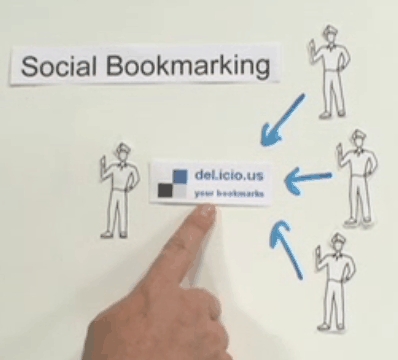
    Social bookmarking is the third tool I use to build my PLN. A powerful social bookmarking tool such as Diigo can be useful in sharing, annotating, and organizing your bookmarks and the bookmarks of others in your PLN.

    Bookmarking and Sharing

    Using the Diigo service allows users to bookmark a URL to Diigo’s servers which means those bookmarks are then accessable from any computer or smartphone with an Internet connection.  During the bookmarking phase users can tag the bookmark to easily find the page for use later.  Diigo allows user to search their own bookmarks by title, by URL, or by tag.  User’s are also able to organize their bookmarks by creating lists.  For example, a teacher may opt to create a list that mirrors the subjects taught by that teacher.  Therefore when he/she needs to find bookmarks related to science he/she can easily click on the science list within the user’s Diigo page.  It is also possible to take a snapshot of the webpage you are going to bookmark.  This could be useful when comparing sites that change often.  Not only is it possible to bookmark URL’s using Diigo, it’s also possible to bookmark pdf’s, blogs, and any other online material.  Finally, if you have a Twitter account you can automatically tweet your latest bookmarks directly to your followers, during the bookmarking phase.

    If Diigo was purely a bookmarking service it would be solid product, but it offers its user’s so much more, making it a great product.  Once you’ve developed a set of bookmarks it’s possible to share those bookmarks with friends or members of your PLN.  This allows you to see what blogs your peers are reading, what websites they’re saving for later use, what paper’s they’re reading, and who is sharing bookmarks with them.  This is a powerful option when collaborating or attempting to expand your knowledge based in a particular area.

    Annotating

    Before, or after for that matter, a URL is bookmarked it’s possible to highlight text and pictures.  The is particular useful when researching.  It is also possible to add notes to the page with multiple sticky notes.  Annotations will then be saved during the bookmarking phased.  These pages can also be sharing with members of your network or PLN.

    Searching

    One of the most exciting features of Diigo is it’s ability to search the Diigo network for tag’s of your choice.  For example, if I need to find resources on ‘digital-storytelling’ I would visit my Diigo homepage and type ‘digital-storytelling’ into the search box.  Diigo then gives me options on my search criteria.  I am able to either search my existing saved sites, search the whole Diigo network for ‘digital-storytelling’ sites, or search my friends (PLN’s) sites.

    For additional information on Diigo please visit the following link to view Diigo screencasts and tutorials:

    http://help.diigo.com/home