Category: Tech Classroom Tools

  • Tech Integration Post # 2 of 10: Using Google Documents As A Collaborative Classroom Tool

    Use a Google Document spreadsheet to facilitate a collaborative class assignment.

    Example: Social Studies

    Learning Outcome example : B2 – compare Canadian society with the society of another country

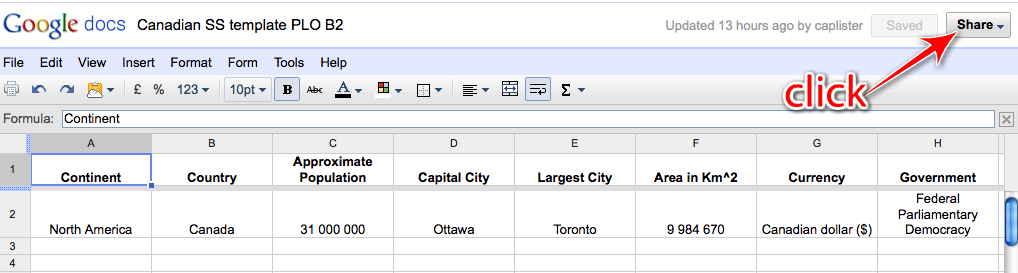
    • Design a spreadsheet which compares Canadian society/culture against other societies/country throughout the world.  See template example Canadian SS template PLO B2
    • This example compares Canadian culture to other countries throughout the world
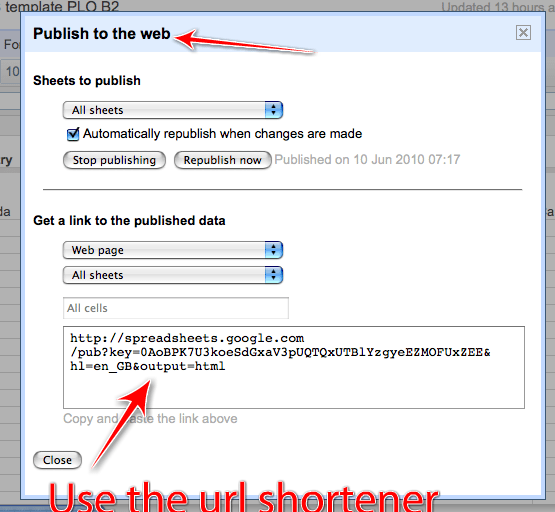
    • Once the spreadsheet is created, publish the document as a web page.  See image below

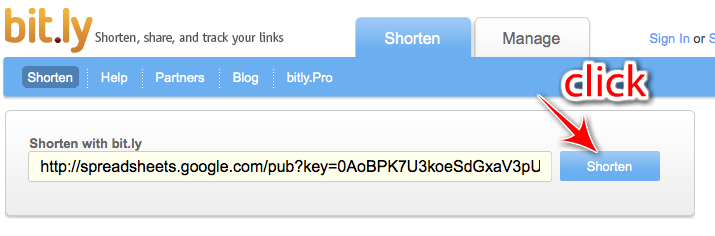
    • Google returns a very long link to the published document.  Use a URL shortener to shorten the link.  See instructions for Bit.ly below
    • Students then enter the (shortened) link into the URL window at the top of their browser.  They will be directed to the spreadsheet
    • Students are now able to access, create, and edit the document.
    • Your students are able to access and interact with the document at one time making it a truly collaborative effort.  Sit back and watch the document create itself.
    • Once the document is complete it can be used as a revision tool or may be used again in another subject such as math when covering data analysis and graphing.

    Bit.ly
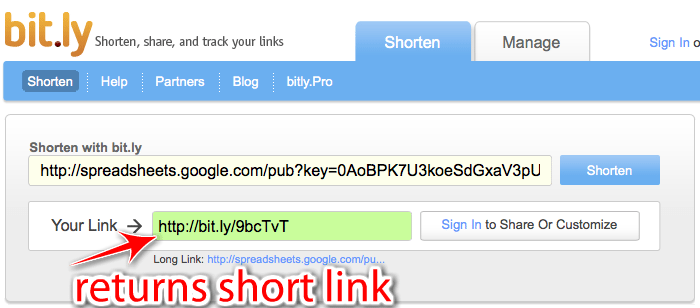
    Copy and paste the link Google gives, to publish the website, into the Bit.ly website.  Click shorten.  Bit.ly will return a short, and more manageable, URL such as http://bit.ly/9pQV.  I’m sure you’ll agree that it’s much easier to remember the shortened URL.

    For those looking for an introductory lesson for the their new class next school year, a great way to get to know your class is to have them fill in this spreadsheet together: Class introduction spreadsheet.

  • Post # 1 of 10: Turning Journal Writing or Free-Writing ‘Online’

    There are several ways to turn the process of journal writing or free-writing from an ‘offline’ activity to an ‘online‘ activity, all of which are simple to achieve and easy to manage.

    Use one of the web2.0 tools below to start a classroom blog.  For more advanced users, use the tools below to create independent blogs for each of your students.

    Here’s a list of commonly used blogging tools:

    • Kid Blog – designed for each student to have an individual blog within a classroom blog created by the teacher
    • Edu Blogs – designed for each student to have an individual blog within a classroom blog created by the teacher
    • Blogger – designed for individual blogging
    • WordPress – designed for individual blogging


    How to set up and use the blog for student learning:

    • All the above blogs are set up in more or less the same way.  Some are designed to be use as individual blogs while others are designed for groups of blogs to be created and administered by a teacher
    • All blogs need an email address to register, and you’ll be prompted to select a title for your blog.
    • My advice is to keep the blog title simple and easy for your learners to remember.  A blog title such as “Technology Trooper’s Of 21st Century Learning” may not be the best title because in order for your learners to access the blog they’ll have to type something similar to the following into the URL box in the browser, http://technologytroopersof21stcenturylearning.wordpress.com
    • When choosing a blog title keep it short and sweet
    • You’ll also be asked during registration for a username and password.  Both pieces of information are required to access, manage, and control the blog once it’s live

    Two Types Of Blogs And How To Use Them:

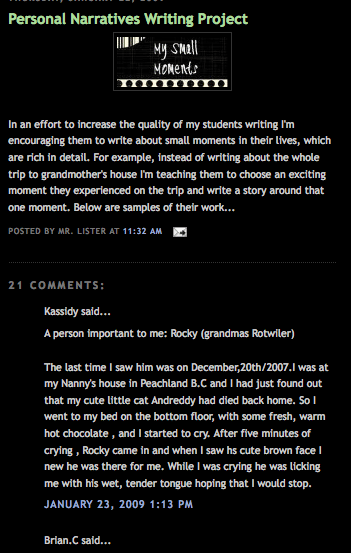
    1. Teacher creates one blog for the entire class and creates content and learners to comment and respond to

    • There are numerous ways to use a blog as an ‘online’ writing tool
    • In its basic form one blog is created, a class blog, and the teacher acts as the administrator of the blog
    • As an introduction to blogging, perhaps the first half of the year, you set the content of the blogs and your learners respond to your posts
    • A post can be defined as content you create and insert (post) into your blog
    • Content can be text, images, video, audio, or a file

    See example below:
    2. Teacher creates a class blog and then creates individual blogs for each learner in his/her class.
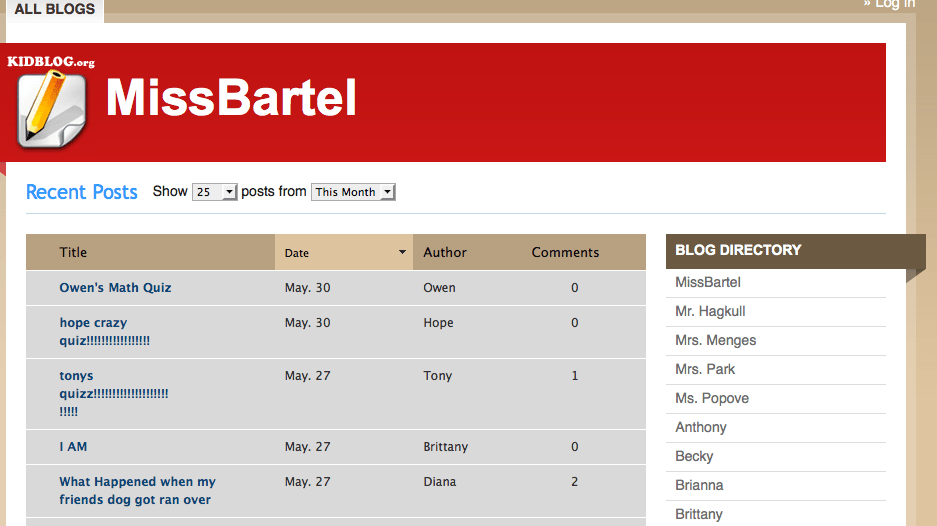
    • This technique is regarded as blogging in its pure form.  Learners generate their own content for their blog.
    • Students comment and interact with each others blogs as well as the teachers blog
    • Students also comment and interact with blogs of other classmates

    Administering The Blog:
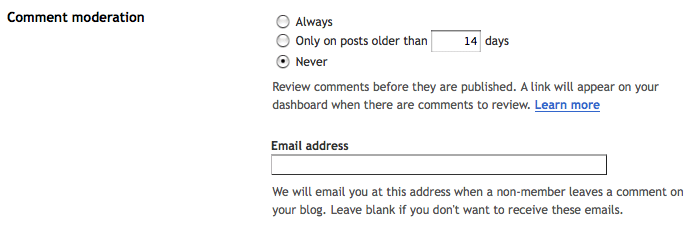
    I realize it’s super important to monitor the content that is posted on a class blog or an individual’s blog.  All of the above blogging tools offer a variety of security options to make sure inappropriate content never makes it to the live blog.  I prefer to select the option which enables all comments go through the teacher to be approved before they are posted to the blog.  This ensure the blog represents the school and all its students in the best possible way.

    See example below:

    Content Ideas For Your Blog:

    • Respond to a picture – How does the picture make you feel and why?  Create a story around the picture.  Create a personality for the person in the picture based on what the person looks like
    • Post a video from YouTube and ask learners to response.  What is Shane Koyczen saying about Canada? Use examples from the poem to support your thinking
    • [youtube=http://www.youtube.com/watch?v=r5-q6S8qJMQ]

    • Post a debate question from idebate.  Split the class into two groups, for and against, and have them post on their initial views followed by their responses to others comments on the blog
    • Use the blog as a math journal for personal reflections and word problem examples.
  • Efficient Google Search Techniques

    Are your students getting the most out of Google search?  Probably not!  Here are some simple and efficient search techniques you could teach your students when searching/researching information on Google:

    • Phrase Search – by surrounding your search string with quotation marks (”Terry Fox Birthday”) you inform Google to search for the exact phrase in the exact order it appears between the quotation marks.
    • Wildcard (*) Search – using the wildcard (*) symbol in a search string allows Google to fill-in-blanks where it sees the wildcard symbol.  For example, the search, (Google *) will return results about many of Google’s products.
    • Exclude Search (-) – when searching, students may become inundated with results that are similar to the desired search result but are actually not useful.  For example, when searching for information on the big cat, jaguar, it is not useful for students to see search result relating to Jaguar motor-vehicles.  Use (-) directly before unwanted search string, (jaguar -cars)  Note: Multiple omissions can be made in the same string by using multiple minus signs, (bears -football -baseball -sports)
    • Search Specific Websites (site:) – Allows your students to search a specific website or group of websites for a phrase or string. For example, to search British Columbia’s government webpages on the environment use the following search string, (environment :.gov.bc.ca)
    • Definition (define:) – Uses Google to find the definition of unknown vocabulary words (define: unknown word)
    • The OR operator (OR) – Google’s default setting is to search for all words in a string. For example, the search string (Queen Elizabeth I II) will return results for both Queen Elizabeth I and Queen Elizabeth II on the same page.  The search string, (Queen Elizabeth I OR II) will return results on one or the other.
    • Calculator – Google may be used as a calculator by typing in a number sentence such as, (2*8).  Google will return the result 16
    • Unit conversion – Google search is also able to compute unit conversion.  For example the search string, (10cl to l) returns the result 0.1 litres

    Here’s a link to a selection of useful Google poster’s you could print out and display in your room/computer lab, all about solid search practices: Google Posters

  • Readability: Declutter Webpages For Easy Reading

    Roaming Educator screencast episode 1: Readability

    [vodpod id=Video.3687991&w=425&h=350&fv=thumb%3Dhttp%3A%2F%2Fcontent.screencast.com%2Fusers%2FMr.Lister%2Ffolders%2FJing%2Fmedia%2F15faf994-cf01-42eb-879f-442037106782%2FFirstFrame.jpg%26amp%3Bcontainerwidth%3D1278%26amp%3Bcontainerheight%3D979%26amp%3Bcontent%3Dhttp%3A%2F%2Fcontent.screencast.com%2Fusers%2FMr.Lister%2Ffolders%2FJing%2Fmedia%2F15faf994-cf01-42eb-879f-442037106782%2Fscreencast_1_readability.swf]

    more about “Roaming Educator Screencast 1: Readab…“, posted with vodpod

    Thanks to Jane’s Pick Of The Day, Jane Hart, I recently stumbled across browser add-on tool, Readability and I think it could have a profound impact on my learner’s ability to read cluttered webpages without being distracted.

    All too often I’ve observed my learner’s distracted by a myriad of visual stimulants when trying to read online text, particularly when reading news online.  Readability is a simple tool which can be installed on the most popular browsers: Safari, Chrome, and Firefox.

    Once installed, see tutorial above, one click of Readability button located in the toolbar area of your browser quickly removes all the distractions and presents the cleaned-up text in a format of your choice.  Your learner’s will be able to read online without being distracted and without the possibility of viewing inappropriate and unregulated content.

    Give and try and let me know what you think.