Category: Technology

  • Tech Integration Post # 6 of 10: Skype an Author On The, Before-During-After, Writing Process.

    Skype is a service which allows the registered user to make free phone calls and video calls over the Internet.  This is a free service but both users need to have Skype software downloaded on their computers before the technology will work.  In order to make a phone call you’ll need a microphone to speak into and a pair of speakers to listen to the responses of the person you’re talking to.  If you would like to engaging in video calls both parties will needed a webcam in order to be able to see each other.

    Using Skype in the classroom is not limited to author workshops, when using Skype you can bring a variety of professionals/experts into your classroom at their convenience.  The following link takes you to a list of professionals/experts from around the world willing to Skype in your classroom.

    Also, please take the time to check out this excellent video resource from Silvia Tolisano

    Example: Use an author to help teach your learner’s about the before, during, and after writing process.  I’ve found that whenever you connect your learner’s to experts outside the classroom it enhances the validity of the task/assignment ten fold, and you’re students become more engaged.

    Learning Outcomes: B.C. Grade 6 Language Arts
    A3 – listen purposefully to understand and analyse ideas and information
    A5 – select and use strategies when expressing and presenting ideas, information, and feelings
    B5 – select and use strategies before reading and viewing to develop understanding of text
    C5 – select and use strategies before writing and representing
    C6 – select and use strategies during writing and representing to express and refine thoughts
    C7 – select and use strategies after writing and representing to improve their work

    Here’s a link to all my Skype related bookmarks on Diigo

    Let me know what you think.  If you’re reading this and have used these techniques please feel free to comment or question.

  • Top 10 Teacher Tools List

    Here’s my top ten tools list and how I use them.  They’re in no particular order.

    1. Google Documents – The ultimate collaboration tool for your PLN and your learners
    2. Twitter – Widen and enhance your PLN circle with this micro-blogging tool.  Superb tool for connecting with fellow educators.
    3. Diigo – Social bookmarking, highlighting, annotating, and research tool.  Use with learners or use with your PLN
    4. Bit.ly – Powerful URL shortener
    5. VoiceThread – Use it to enhanced/develop oral language skills, practice foreign languages, and useful for students with limited written output or LA students
    6. Skype – Connect your learners with professionals from around the globe, collaborate with classrooms across the nation, and interact with authors
    7. Wallwisher – Virtual sticky-note tool.  Use it as a formative assessment tool during a break
    8. Podomatic – Powerful and free podcast hosting tool
    9. WordPress – Powerful blogging tool which can be used as a reflection tool. Excellent for math journals
    10. Google Reader – Fantastic RSS feed-reader.  Let Google Reader do the work for you.  No longer need to spend time visiting all your favourite websites and blogs.  Google Reader brings them to you to read

    Think a tool should have made the top 10?  Let me know your thoughts.

  • Tech Integration Post # 5 of 10: Health and Career Education 2.0

    Grade 5 Health and Career Education Learning Outcome: Safety and Injury Prevention

    C7 – describe safety guidelines to protect themselves and others from abuse and exploitation (e.g., knowing their right not to be abused, being assertive, avoiding potentially unsafe situations, practicing safe Internet use, recognizing tricks and lures used by predators)

    Use a Flip camera, a video camera, a digital camera, or a mobile phone to video small groups of students acting out how to be safe online.  Try these topics or generate your own:

    1. Never hide Internet usage from your parents.  Always let them know when your online
    2. Never reveal personal information such as telephone number, address, last name etc…
    3. Never arrange to meet someone you’ve met online and don’t know, without your parents permission
    4. Cyberbullying
    5. Digital citizenship
    6. Protecting reputations online
    7. Digital privacy
    8. Safe talking in Cyberspace
    9. Handling E-mail and IM
    10. Safe Social Networking

    Your learners may choose a topic and research, in depth, based on the information you’ve share with them or from information they have found independently.  They form a small group of three or four and complete the following tasks:

    • Sketch out a storyboard of the Internet/Online safety skit
    • Create a script of dialogue for the skit
    • Collect any props needed for the skit and practice until comfortable
    • Record the skit and edit using JayCut

    Note: This is a cross-curricular activity and can be used for oral language practice as well as a writing exercise.
    My Diigo links on Internet/Online Safety

    Once your videos are complete your learners can use JayCut to upload and edit them.  JayCut is a free online video editing tool.  There is no longer a need to download expensive video editing software.  You can use JayCut from any computer with an Internet connection and the basic package is free.

    When the videos have been edited by your learners they may be showcased at assemblies or shown to learners in younger grades and used as a teaching tool.  Older grades tend to put more effort into their work when the audience is larger and they know it’s being used for a higher purpose.

    Feel free to let me know how it goes…

  • Tech Integration Post # 4 of 10: Teaching with TED

    TED is a small non-profit devoted to ‘Ideas Worth Spreading.’  It began in 1984 as a conference, bringing together leaders in the fields of Technology, Entertainment, and Design.  The TED website makes a selection of the best talks and performances available to view and download for free.  All of the talks feature closed captions in English, and many feature subtitles in various languages. These videos are released under a Creative Commons license, so they can be freely shared and reposted.  If you subscribe to a news reader such as Google Reader you can also subscribe to new talks here.

    I’ve used TED in the classroom to inspire my learners, to bring attention to important world events, to listen to debates and form opinions, to create and stimulate inquiry, to activate prior knowledge, to offer career and life-skills knowledge, and as a writing prompt.

    The following TED talk is a debate and asks the question, “Does the world need nuclear energy?” It compares the future of burning fossil fuels energy against the possibility of increasing nuclear power production.  Obviously, the vocabulary used in these talks are not necessarily intermediate grade friendly but I feel it serves as a great introduction to a debate writing unit for grade 6, or an introduction to non-renewable resources in covered in B.C. science 6.

    [youtube=http://www.youtube.com/watch?v=UK8ccWSZkic]

    It’s simple to use TED as an engaging way to meet many learning outcomes in British Columbia and beyond.  Here are a few examples which link specific TED talks directly to B.C. learning outcomes:

    B.C. PLO Science grade 5: Earth and Space Science: Renewable and Non-Renewable Resources

    • analyze how BC’s living and non-living resources are used
    • identify methods of extracting or harvesting and processing BC’s resources
    • describe potential environmental impacts of using BC’s living and non-living resources

    B.C. PLO English Language Arts grade 6:

    • Oral Language: A1 use speaking and listening to interact with others
    • Reading and viewing: B9 read and view to improve and extend thinking
    • Writing and representing: C2 write a variety of effective informational writing for a range of purposes and audiences that communicates ideas to inform or persuade


    Why use TED?

    1. It’s real
    2. It’s relevant
    3. It’s current
    4. It connects classroom’s with people making positive change in the world.

    Check it out and let me know what you think.

  • Tech Integration Post # 3 of 10: Using VoiceThread To Enhance Oral Language While Meeting Science Learning Outcomes

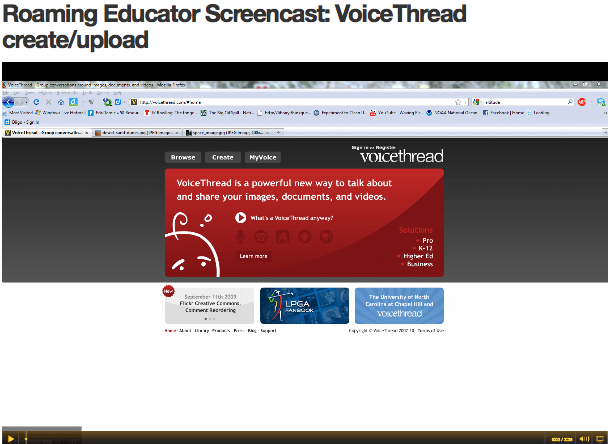
    VoiceThread is a web2.0 tool that allows users to create and upload video, text, images, and audio (known as content) to a secure server from where anyone with access can interact with the content.  Think of it as an audio blog.

    Example:
    Grade 6 Science learning outcome: Earth and Space science – explain obstacles unique to exploration of a specific extreme environment.

    Instructions On How To Create An Account:


    How to create a VoiceThread:


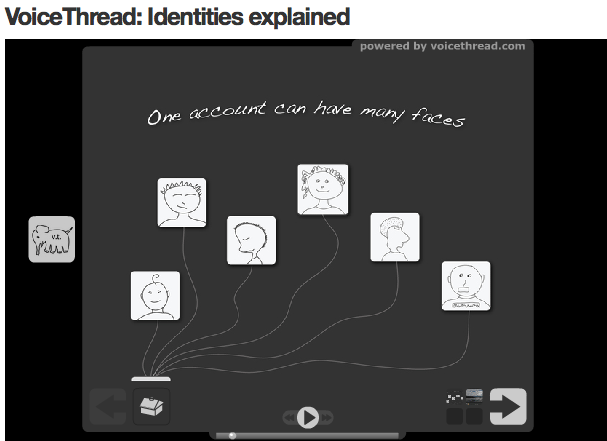
    How to create multiple identities:


    In the PLO example at the top of the post, your students will find examples of extreme environments using images, video, or text.  They will use the audio feature to comment on the content by explaining why the chosen environment is extreme. Students will discuss why the environment is extreme, and what makes it difficult to life there.  Each student uploads a different example of an extreme environment and comments on their own thread as well as other class member’s threads.  This is great way to practice and assess oral language as well as introduce and practice science specific vocabulary.


    Suggested Achievement Indicators (audio comments/responses) for this PLO are:

    • Identify the salient characteristics of an extreme environment (e.g., space, polar ice, oceans, volcanoes, and the atmosphere — a place that humans do not naturally inhabit but choose to explore)
    • Give several examples of resources and knowledge that can be obtained from distant explorations
    • Give several examples of how technology can be used by humans to travel to and explore an unknown environment
  • Interactive Whiteboards (IWB): Post 1 of 2

    I’m attending my first IWB workshop on Friday June 18 so I thought I’d compose before and after posts.  Presently I haven’t actually used an IWB in a classroom so all the information is from research I’ve compiled.  Early next week I’ll be able to offer additional information once I’ve completed the workshop.

    I’m convinced that every classroom in Canada will have an interactive whiteboard (Smartboard) installed within the next 5 years.  It is the next evolution of the chalkboard, so you might as well embrace it now.  Is resistance is futile?

    What exactly is an Interactive Whiteboard (IWB)?

    • A large display that connects to a computer and projector
    • The projector projects the computer’s desktop image onto the display
    • Your learners control the display with electronic pens, fingers, or other devices
    • The display is typically wall mounted and is movable

    [youtube=http://www.youtube.com/watch?v=DjdNPMZJbLs]

    As early as 2004, 26% of primary classrooms in the UK had IWB’s.  The BECTA, government agency promoting the use of technology integration in the classroom, completed a two-year study recent and as a result of that research, is working on an expansion plan for IWB in the classroom.

    Pros:

    • Increases student engagement
    • Engaging with material in a different way 1
    • Objects are able to be manipulated in a hands-on way with an IWB i.e. measuring angles in geometry 1
    • Encourage a different, more collaborative kind of teaching 1

    Cons:

    • Not enough training for teachers
    • First year of introduction leads to little/no significant impact on a learner’s academic performance
    • Teacher’s focus more on the technology than on learning outcomes
    • The interactive nature of the IWB can make some relative mundane task take longer than necessary particularly with low functioning students

    It’s time to open up the dialogue surrounding the use of IWB in our classrooms.  What are your thoughts?

  • Professional Development Ideas for 21st Century Teaching

    Does your school offer the professional development you’re need?

    Recently I worked with my Twitter PLN on the topic of professional development.  Directly after the Tuesday Edchat session we worked on a document together, describing the kind of professional development opportunities we wished our schools districts offered.  We also discussed how we could developed our own in the interim.

    Here’s a list of my favourite professional development opportunities I wished my district offered:

    Personally, this type of collaborative effort excites me as an educator.  I would ultimately like to master my craft (education) and I feel like I move one step closer every time I connect with fellow educators from around the globe.

    Many thanks to #Edchat, my PLN, the following educators – @actionhero, @missbartel, @21stcenturychem, @DrTimony, @cybraryman1, @davidwees, and everyone else who contributed to the document: http://bit.ly/aFuWAd

  • Tech Integration Post # 2 of 10: Using Google Documents As A Collaborative Classroom Tool

    Use a Google Document spreadsheet to facilitate a collaborative class assignment.

    Example: Social Studies

    Learning Outcome example : B2 – compare Canadian society with the society of another country

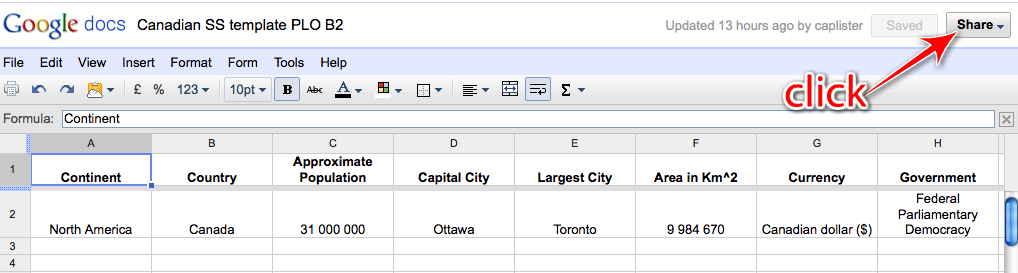
    • Design a spreadsheet which compares Canadian society/culture against other societies/country throughout the world.  See template example Canadian SS template PLO B2
    • This example compares Canadian culture to other countries throughout the world
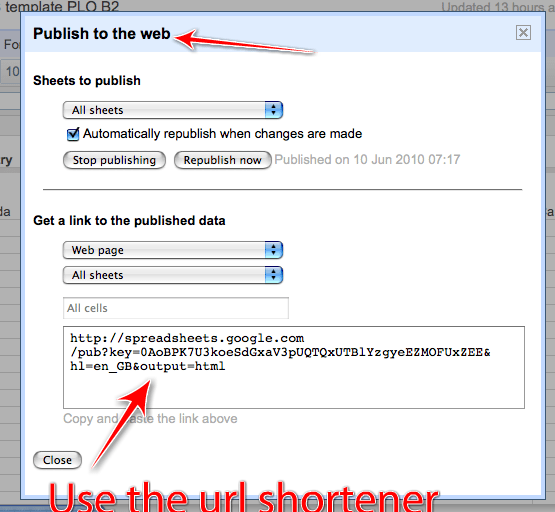
    • Once the spreadsheet is created, publish the document as a web page.  See image below

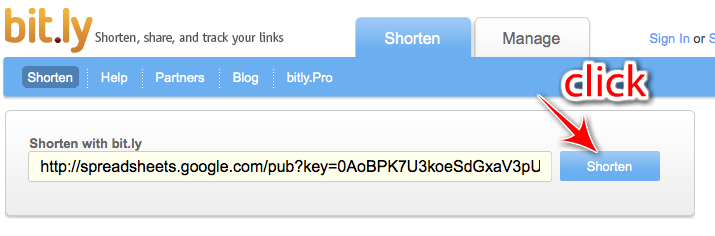
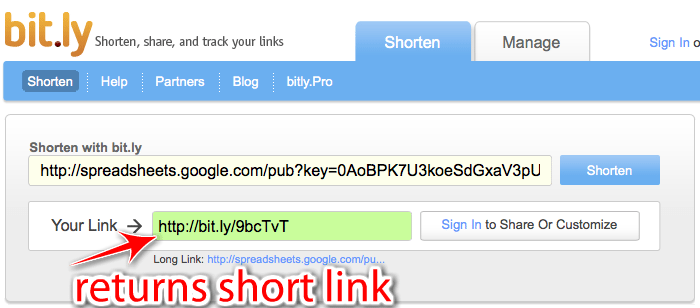
    • Google returns a very long link to the published document.  Use a URL shortener to shorten the link.  See instructions for Bit.ly below
    • Students then enter the (shortened) link into the URL window at the top of their browser.  They will be directed to the spreadsheet
    • Students are now able to access, create, and edit the document.
    • Your students are able to access and interact with the document at one time making it a truly collaborative effort.  Sit back and watch the document create itself.
    • Once the document is complete it can be used as a revision tool or may be used again in another subject such as math when covering data analysis and graphing.

    Bit.ly
    Copy and paste the link Google gives, to publish the website, into the Bit.ly website.  Click shorten.  Bit.ly will return a short, and more manageable, URL such as http://bit.ly/9pQV.  I’m sure you’ll agree that it’s much easier to remember the shortened URL.

    For those looking for an introductory lesson for the their new class next school year, a great way to get to know your class is to have them fill in this spreadsheet together: Class introduction spreadsheet.

  • Post # 1 of 10: Turning Journal Writing or Free-Writing ‘Online’

    There are several ways to turn the process of journal writing or free-writing from an ‘offline’ activity to an ‘online‘ activity, all of which are simple to achieve and easy to manage.

    Use one of the web2.0 tools below to start a classroom blog.  For more advanced users, use the tools below to create independent blogs for each of your students.

    Here’s a list of commonly used blogging tools:

    • Kid Blog – designed for each student to have an individual blog within a classroom blog created by the teacher
    • Edu Blogs – designed for each student to have an individual blog within a classroom blog created by the teacher
    • Blogger – designed for individual blogging
    • WordPress – designed for individual blogging


    How to set up and use the blog for student learning:

    • All the above blogs are set up in more or less the same way.  Some are designed to be use as individual blogs while others are designed for groups of blogs to be created and administered by a teacher
    • All blogs need an email address to register, and you’ll be prompted to select a title for your blog.
    • My advice is to keep the blog title simple and easy for your learners to remember.  A blog title such as “Technology Trooper’s Of 21st Century Learning” may not be the best title because in order for your learners to access the blog they’ll have to type something similar to the following into the URL box in the browser, http://technologytroopersof21stcenturylearning.wordpress.com
    • When choosing a blog title keep it short and sweet
    • You’ll also be asked during registration for a username and password.  Both pieces of information are required to access, manage, and control the blog once it’s live

    Two Types Of Blogs And How To Use Them:

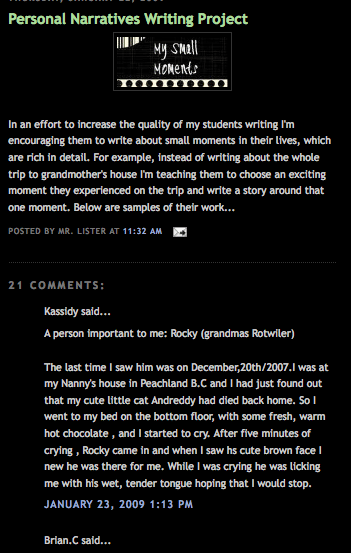
    1. Teacher creates one blog for the entire class and creates content and learners to comment and respond to

    • There are numerous ways to use a blog as an ‘online’ writing tool
    • In its basic form one blog is created, a class blog, and the teacher acts as the administrator of the blog
    • As an introduction to blogging, perhaps the first half of the year, you set the content of the blogs and your learners respond to your posts
    • A post can be defined as content you create and insert (post) into your blog
    • Content can be text, images, video, audio, or a file

    See example below:

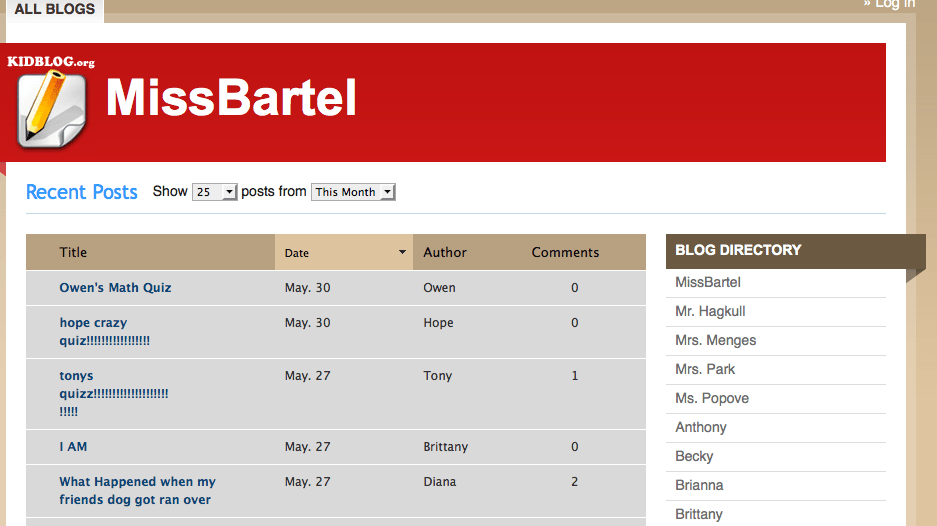
    2. Teacher creates a class blog and then creates individual blogs for each learner in his/her class.

    • This technique is regarded as blogging in its pure form.  Learners generate their own content for their blog.
    • Students comment and interact with each others blogs as well as the teachers blog
    • Students also comment and interact with blogs of other classmates

    Administering The Blog:
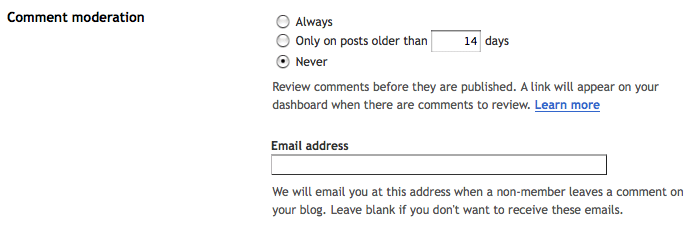
    I realize it’s super important to monitor the content that is posted on a class blog or an individual’s blog.  All of the above blogging tools offer a variety of security options to make sure inappropriate content never makes it to the live blog.  I prefer to select the option which enables all comments go through the teacher to be approved before they are posted to the blog.  This ensure the blog represents the school and all its students in the best possible way.

    See example below:

    Content Ideas For Your Blog:

    • Respond to a picture – How does the picture make you feel and why?  Create a story around the picture.  Create a personality for the person in the picture based on what the person looks like
    • Post a video from YouTube and ask learners to response.  What is Shane Koyczen saying about Canada? Use examples from the poem to support your thinking
    • [youtube=http://www.youtube.com/watch?v=r5-q6S8qJMQ]

    • Post a debate question from idebate.  Split the class into two groups, for and against, and have them post on their initial views followed by their responses to others comments on the blog
    • Use the blog as a math journal for personal reflections and word problem examples.
  • Intro To Integrating Technology Into The Classroom Series: 10 Ways To Turn ‘Offline’ Classroom Activities ‘Online’

    [youtube=http://www.youtube.com/watch?v=_A-ZVCjfWf8]

    My next ten posts, not necessarily in chronological order, will be dedicated to giving real examples of how ‘offline’ activities can be turned into ‘online’ activities to enhanced student engagement, and encourage tech-shy educators to take their first steps in integrating technology into the classroom.

    Why is it important to integrate technology into the classroom?

    • Enhances student engagement
    • Your learners are growing up in a digital world
    • Relate to your students with your understanding of social media
    • Help to make the shift for teachers away from content deliverers to content facilitators
    • Help prepare your learners for a digital future
    • Create a truly collaborative environment
    • Make the world a smaller place i.e. flatten the classroom

    Hope you enjoy the series.  I will try to link everything I do to British Columbia’s Prescribed Learning Outcomes as much as possible.