Category: Technology

  • 100% Engagement Using Wallwisher

    After watching the Olympics on CTV I was thoroughly impressed with their segments on athlete’s ‘Difference Makers.’ These segments delved into the lives of Canadian athletes to discover the people behind the scenes who drive them to success and help athletes reach their lofty goals.

    I mirrored CTV’s  ‘Difference Makers’ but tailored it to my learners.  I lead them to think about significant people in their lives who have help them become the wonderful people they are today.

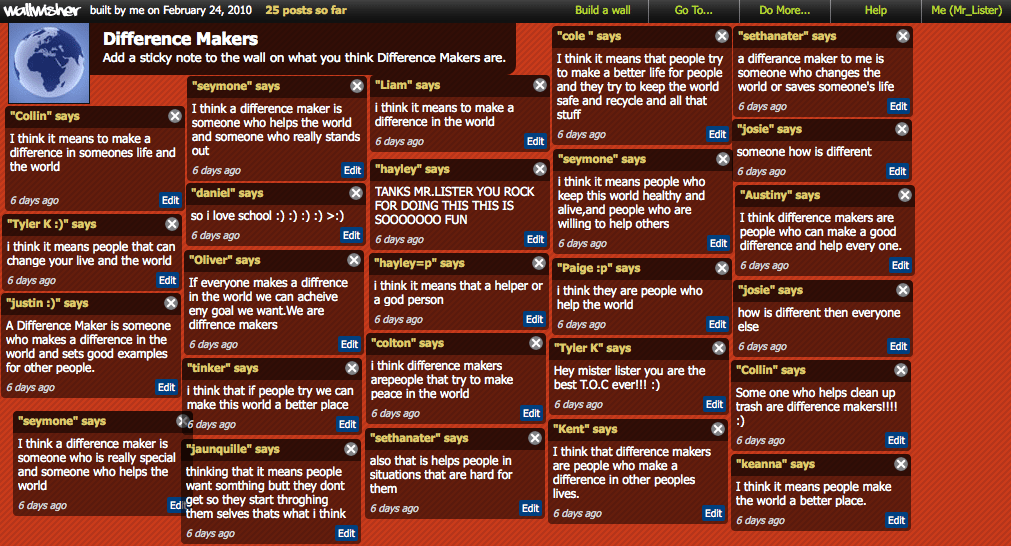
    This post talks about just one of the stages in this lesson.  Most of my learners hadn’t seen any of the ‘Difference Makers’ clips so I decided to write the statement ‘Difference Makers’ on the board and asked student to discuss its meaning in partners.  Normally I ask my learners to write their thoughts, ideas, or comments to the topic on sheets of large paper.  Often with mixed results.  However on this occasion I thought I’d try www.wallwisher.com.  I created a wallwisher page free of charge, named it difference makers, and created the conditions for students to post virtual sticky notes on a virtual classroom-board.  During the time my learners were posting I observed 100% engagement in the activity.  Had this been with pen and paper I doubt I would have experience the same kind of results.  You could argue that perhaps they were all engaged because it was new to them.  I guess only time will tell.

    What I like most about wallwisher is that it is customizable and allows the creator of the page to approve stickies before they appear on the wall.  This
  • Broadening My Horizons Using Social Bookmarking

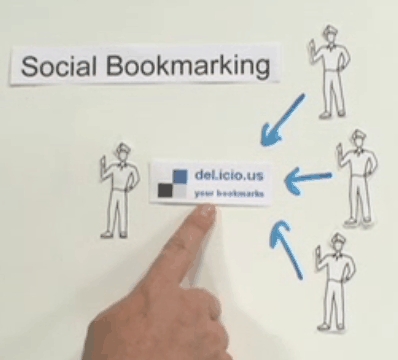
    Social bookmarking is the third tool I use to build my PLN. A powerful social bookmarking tool such as Diigo can be useful in sharing, annotating, and organizing your bookmarks and the bookmarks of others in your PLN.

    Bookmarking and Sharing

    Using the Diigo service allows users to bookmark a URL to Diigo’s servers which means those bookmarks are then accessable from any computer or smartphone with an Internet connection.  During the bookmarking phase users can tag the bookmark to easily find the page for use later.  Diigo allows user to search their own bookmarks by title, by URL, or by tag.  User’s are also able to organize their bookmarks by creating lists.  For example, a teacher may opt to create a list that mirrors the subjects taught by that teacher.  Therefore when he/she needs to find bookmarks related to science he/she can easily click on the science list within the user’s Diigo page.  It is also possible to take a snapshot of the webpage you are going to bookmark.  This could be useful when comparing sites that change often.  Not only is it possible to bookmark URL’s using Diigo, it’s also possible to bookmark pdf’s, blogs, and any other online material.  Finally, if you have a Twitter account you can automatically tweet your latest bookmarks directly to your followers, during the bookmarking phase.

    If Diigo was purely a bookmarking service it would be solid product, but it offers its user’s so much more, making it a great product.  Once you’ve developed a set of bookmarks it’s possible to share those bookmarks with friends or members of your PLN.  This allows you to see what blogs your peers are reading, what websites they’re saving for later use, what paper’s they’re reading, and who is sharing bookmarks with them.  This is a powerful option when collaborating or attempting to expand your knowledge based in a particular area.

    Annotating

    Before, or after for that matter, a URL is bookmarked it’s possible to highlight text and pictures.  The is particular useful when researching.  It is also possible to add notes to the page with multiple sticky notes.  Annotations will then be saved during the bookmarking phased.  These pages can also be sharing with members of your network or PLN.

    Searching

    One of the most exciting features of Diigo is it’s ability to search the Diigo network for tag’s of your choice.  For example, if I need to find resources on ‘digital-storytelling’ I would visit my Diigo homepage and type ‘digital-storytelling’ into the search box.  Diigo then gives me options on my search criteria.  I am able to either search my existing saved sites, search the whole Diigo network for ‘digital-storytelling’ sites, or search my friends (PLN’s) sites.

    For additional information on Diigo please visit the following link to view Diigo screencasts and tutorials:

    http://help.diigo.com/home

  • The Power Of An RSS Reader…

    [youtube=http://www.youtube.com/watch?v=0klgLsSxGsU]
    RSS stands for Really Simple syndication.  An RSS reader is the inverse process of visiting your favourite bookmarked sites.  Rather than spending time searching your favourite websites and blogs for new postings an RSS reader allows you to follow updates and track new posts from one single easily navigable page:  You’re reader homepage.

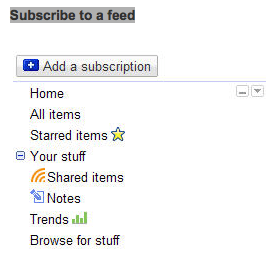
    I use Google Reader but there are several other equally powerful options such as Newzcrawler, FeedDemon, OmeaReader, and Bloglines. Most websites/blogs have an RSS button  for you to click to follow, but if no RSS button is present Google reader still allows you to follow updates by clicking on the Add Subscription button and pasting the url into the box on the left hand side of the page.

    Once subscribed to a website/blog you create an RSS feed.   The name of feed will appear in the left hand plane, under the heading Subscriptions.  A number will appear next to the subscriptions which indicates the number of unread items associated with that feed.  Clicking on a feed will open a list of posts, in chronological order, in the main window.  When a feed is selected for viewing it may view it in one of two ways.  Expanded view allows for the reader to see the headline and the first few sentences of the post, whereas List view allows the reader to only view the headline. These options are located in the top right hand corner of the main window.

    One of the most exciting options in Google Reader is the ability to share feeds with other people.  This is especially useful when building Professional Learning Networks (PLN’s).  To share an item, click the Share or Share with note button underneath an item.  These items will appear in Your shared items.  You can also click the Email button to send individual items directly to your friends.  You have the option to automatically share your shared items with a list of friends or with your Gmail chat contacts.  Click the Sharing settings link to customize who can see your shared items and whose shared items you’d like to see.

    It’s also possible to follow someone else’s Google Reader feeds as along as they first share their feeds publically.  If they’re choosing to share publicly, you can just search for their name using Reader’s People Search.  To search for someone, click the Browse for stuff in your left hand sidebar.  Next, click the Search tab. Finally, type in the name of the person you’re searching for under the heading Find people to follow.  You can also search for a topic or interest.  People Search is also available in your sharing settings.

    Instead of wasting valuable time searching the Internet for resources, let Google Reader do the work for you.  To sign up for Google Reader click the highlighted link.  Happy RSSing!