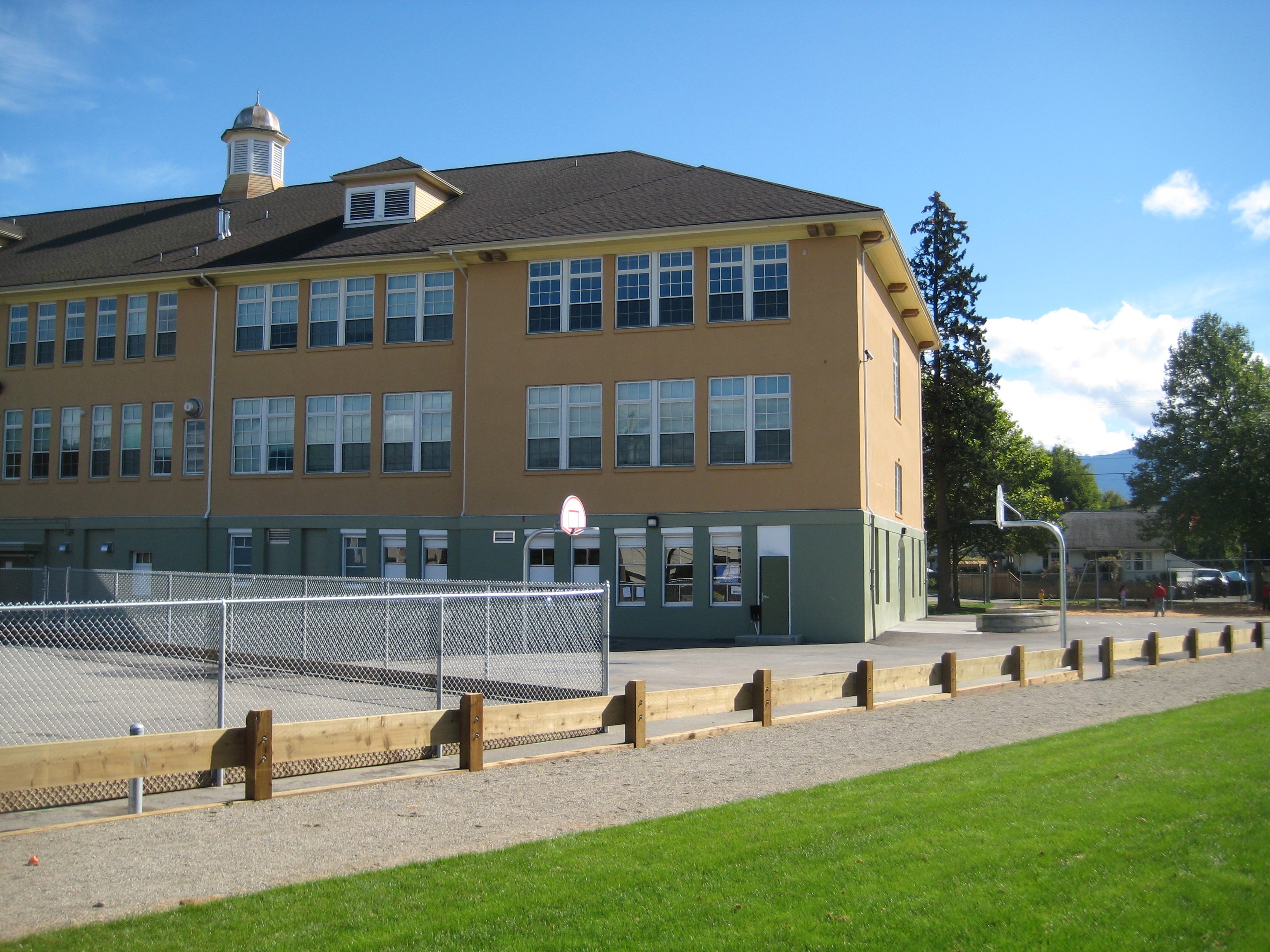
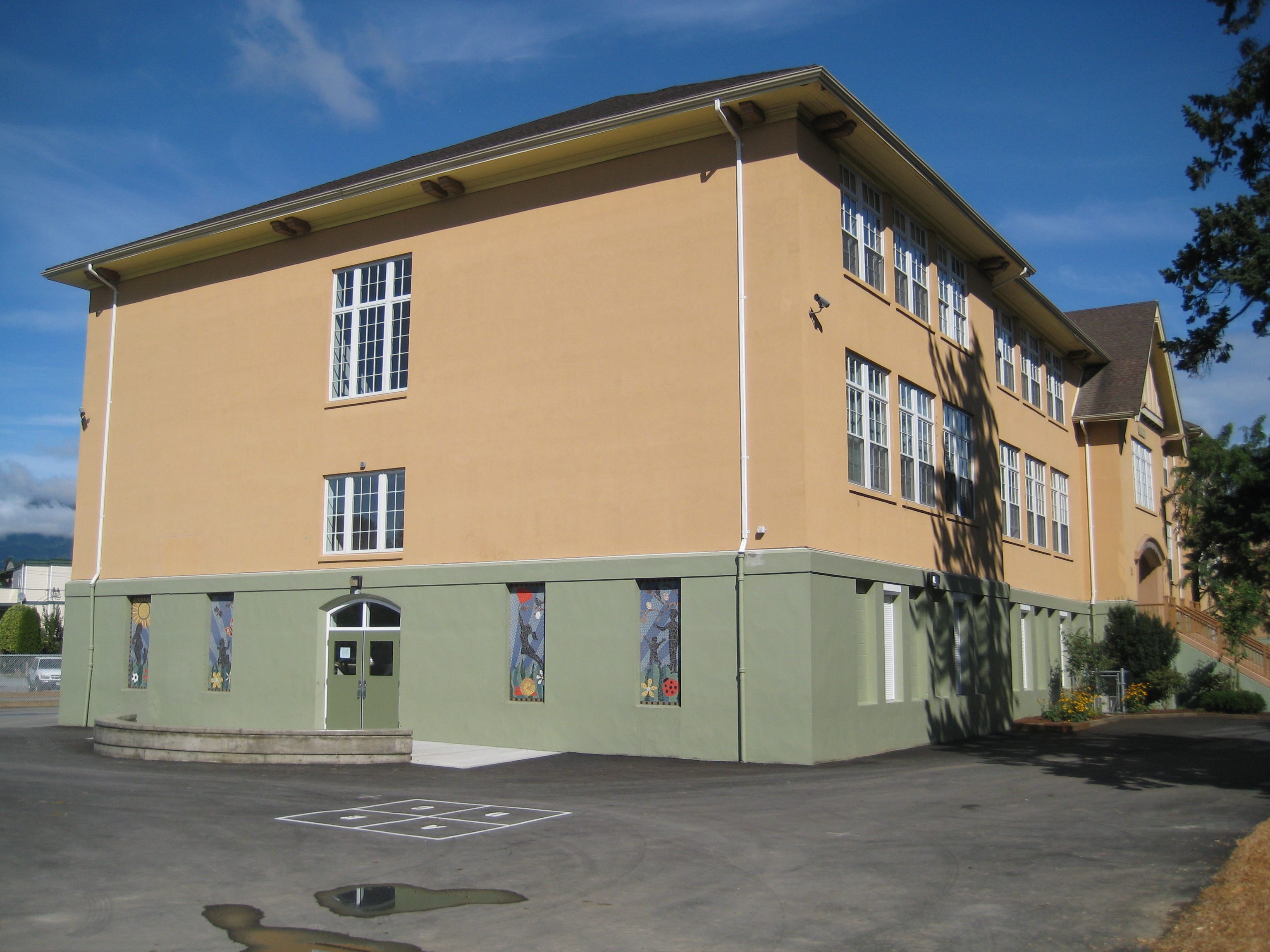
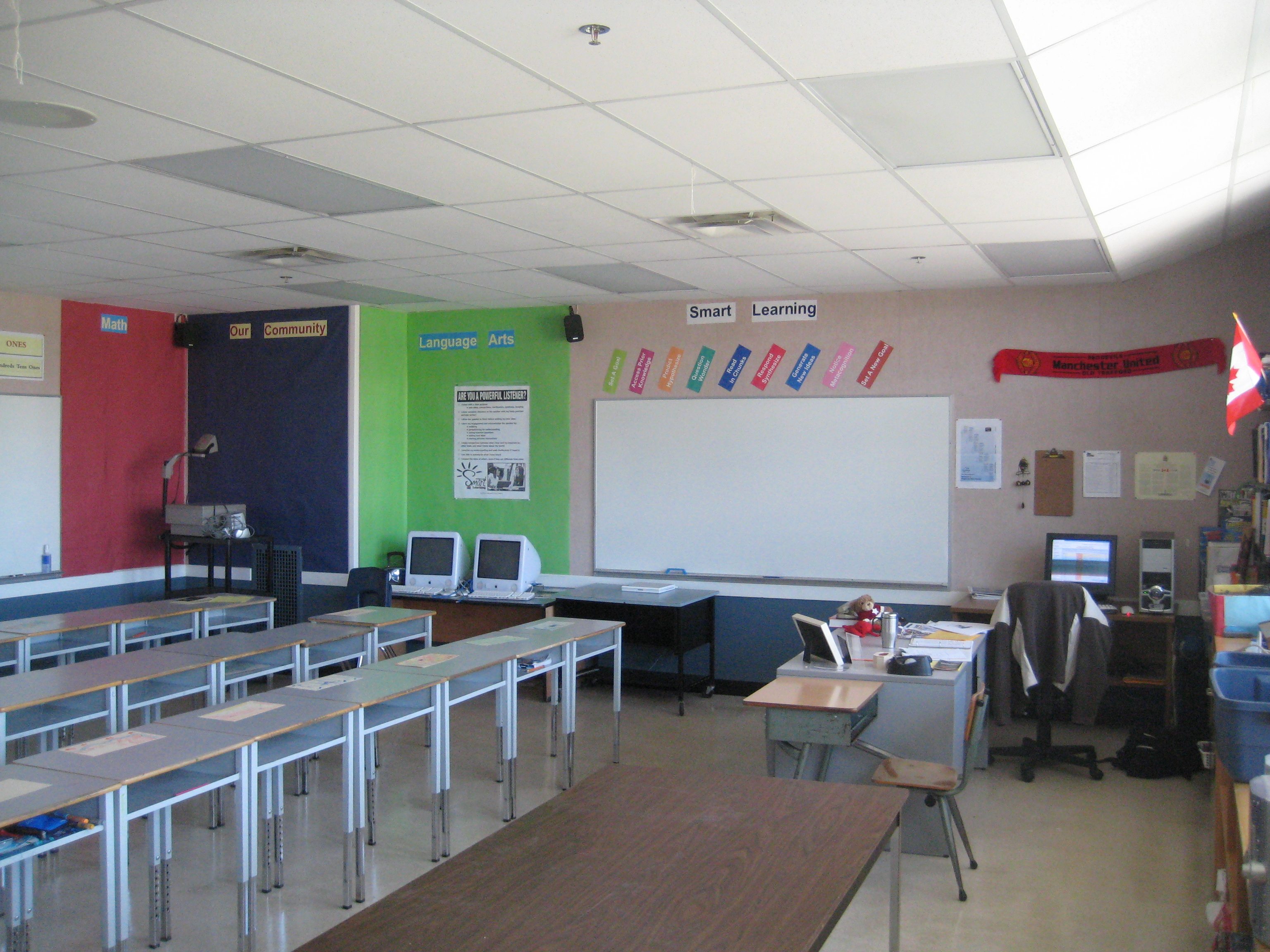
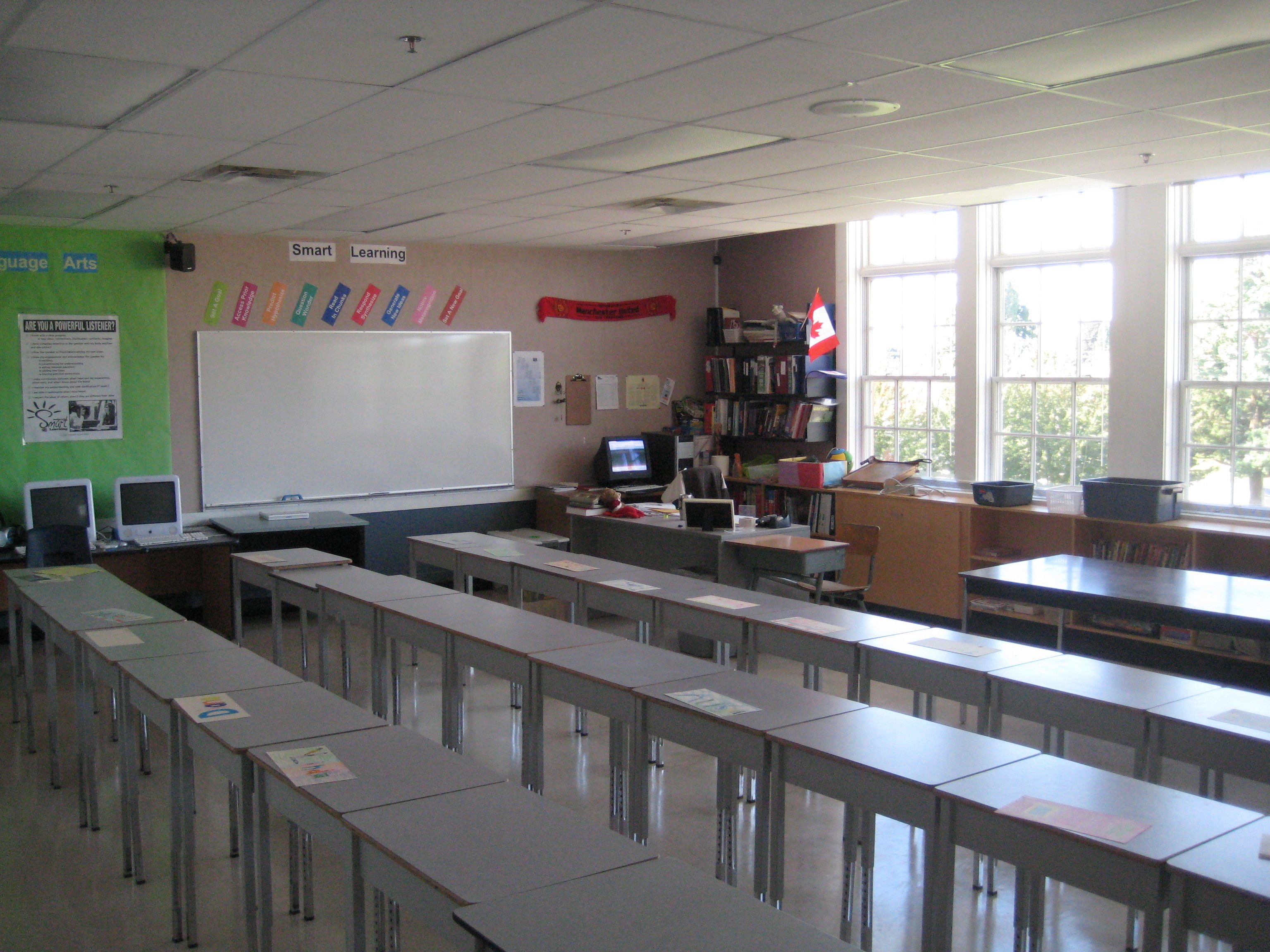
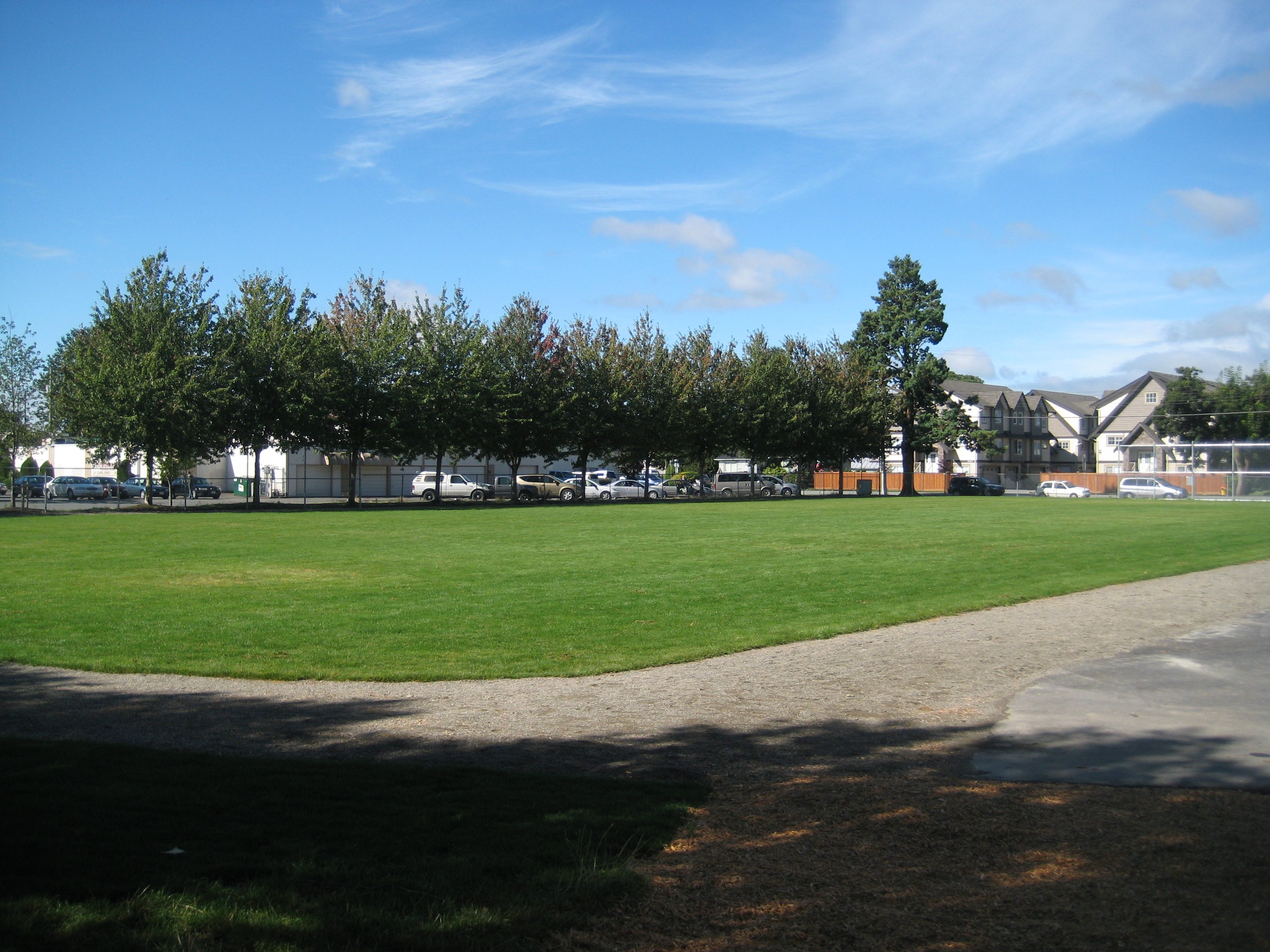
After working as a collaboration teacher last year, traveling from school to school without a home school, I’m relieved to have found a permanent classroom for the year. This year I’m working at Central Elementary Community School in Chilliwack, British Columbia, Canada. I’m teaching grade 5/6. I worked at Central two years ago but the school looked very different then. Sadly, I don’t have any comparison pictures to share with you but imagine 250 students jammed into several poorly designed and irregularly heated porta cabins for the year. Today the school is the flagship school in the district. The building has been fully renovated but retains its old 3 storey school-house feel. The grounds of the school are both vast and well-groomed. Within the grounds of the school we have a full-size field suitable for hosting soccer games and field events, a 250m running track, a fully enclosed ball-hockey rink, basketball nets and tether ball stands. In addition we have various climbing structures for both primary and intermediate playgrounds, and several sets of swings. I’m really excited to be back at Central, and to be working with the diverse learners in this inner-city school.
Category: Uncategorized
-
Summer Break
Hi All,
Just wanted to let everyone know that Roaming Educator will be taking a break this summer, so you won’t see any updates until late August.
I’m cycling to Alaska with 4 teacher friends. If you’d like to follow our cycling blog please visit:
cycletoalaska.wordpress.com – group blog
legsinmotion.wordpress.com – my recreational blog
Have a wonderful summer PLN!
-
Efficient Google Search Techniques

Are your students getting the most out of Google search? Probably not! Here are some simple and efficient search techniques you could teach your students when searching/researching information on Google:
- Phrase Search – by surrounding your search string with quotation marks (”Terry Fox Birthday”) you inform Google to search for the exact phrase in the exact order it appears between the quotation marks.
- Wildcard (*) Search – using the wildcard (*) symbol in a search string allows Google to fill-in-blanks where it sees the wildcard symbol. For example, the search, (Google *) will return results about many of Google’s products.
- Exclude Search (-) – when searching, students may become inundated with results that are similar to the desired search result but are actually not useful. For example, when searching for information on the big cat, jaguar, it is not useful for students to see search result relating to Jaguar motor-vehicles. Use (-) directly before unwanted search string, (jaguar -cars) Note: Multiple omissions can be made in the same string by using multiple minus signs, (bears -football -baseball -sports)
- Search Specific Websites (site:) – Allows your students to search a specific website or group of websites for a phrase or string. For example, to search British Columbia’s government webpages on the environment use the following search string, (environment :.gov.bc.ca)
- Definition (define:) – Uses Google to find the definition of unknown vocabulary words (define: unknown word)
- The OR operator (OR) – Google’s default setting is to search for all words in a string. For example, the search string (Queen Elizabeth I II) will return results for both Queen Elizabeth I and Queen Elizabeth II on the same page. The search string, (Queen Elizabeth I OR II) will return results on one or the other.
- Calculator – Google may be used as a calculator by typing in a number sentence such as, (2*8). Google will return the result 16
- Unit conversion – Google search is also able to compute unit conversion. For example the search string, (10cl to l) returns the result 0.1 litres
Here’s a link to a selection of useful Google poster’s you could print out and display in your room/computer lab, all about solid search practices: Google Posters
-
The Power Of An RSS Reader…
[youtube=http://www.youtube.com/watch?v=0klgLsSxGsU]
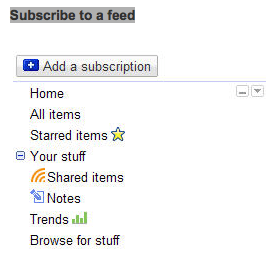
RSS stands for Really Simple syndication. An RSS reader is the inverse process of visiting your favourite bookmarked sites. Rather than spending time searching your favourite websites and blogs for new postings an RSS reader allows you to follow updates and track new posts from one single easily navigable page: You’re reader homepage.I use Google Reader but there are several other equally powerful options such as Newzcrawler, FeedDemon, OmeaReader, and Bloglines. Most websites/blogs have an RSS button
for you to click to follow, but if no RSS button is present Google reader still allows you to follow updates by clicking on the Add Subscription button and pasting the url into the box on the left hand side of the page.Once subscribed to a website/blog you create an RSS feed. The name of feed will appear in the left hand plane, under the heading Subscriptions. A number will appear next to the subscriptions which indicates the number of unread items associated with that feed. Clicking on a feed will open a list of posts, in chronological order, in the main window. When a feed is selected for viewing it may view it in one of two ways. Expanded view allows for the reader to see the headline and the first few sentences of the post, whereas List view allows the reader to only view the headline. These options are located in the top right hand corner of the main window.
One of the most exciting options in Google Reader is the ability to share feeds with other people. This is especially useful when building Professional Learning Networks (PLN’s). To share an item, click the Share or Share with note button underneath an item. These items will appear in Your shared items. You can also click the Email button to send individual items directly to your friends. You have the option to automatically share your shared items with a list of friends or with your Gmail chat contacts. Click the Sharing settings link to customize who can see your shared items and whose shared items you’d like to see.
It’s also possible to follow someone else’s Google Reader feeds as along as they first share their feeds publically. If they’re choosing to share publicly, you can just search for their name using Reader’s People Search. To search for someone, click the Browse for stuff in your left hand sidebar. Next, click the Search tab. Finally, type in the name of the person you’re searching for under the heading Find people to follow. You can also search for a topic or interest. People Search is also available in your sharing settings.
Instead of wasting valuable time searching the Internet for resources, let Google Reader do the work for you. To sign up for Google Reader click the highlighted link. Happy RSSing!



-
Suddenly I Seem To Have A Voice…
[youtube=http://www.youtube.com/watch?v=ZuIxpz6UklE&hl=en_US&fs=1&]
Since joining #edchat on Twitter several weeks ago I’ve suddenly developed a voice on educational related topics. I feel more connected to my profession than ever before.
This is my fourth year in the British Columbia school system and as a continuing status employee of the Chilliwack School District (SD33) I’ve found it difficult to establish myself in a continuing full-time classroom. The economic climate has taken its toll! I used to hear the masses say, “This is a great time to enter education. All the baby boomers are retiring.” Well, not in my district. The point I’d like to make today is that the majority of jobs I’ve had in the last four years have not allowed the kind of skill development I would have preferred. Instead of honing my craft in a classroom and interacting/collaborating with staff in a single school, I move from school to school on a daily basis. I find it difficult to relationship build with students, staff, and the community in this role. Twitter, more precisely, #edchat helps!
To counteract this situation I’ve attempted to build my own local PLN which is slowly taking off. I also use the Internet as a way to communication with educators around the world. Twitter provides me the opportunity to help other educators and at the same time allows me to feel valued as an educator. A quality which rarely happens in my current situation. Other web2.0 tools which help me stay on the cutting edge of my profession are delicious (social bookmarking tool) classroom 2.0 (educators Ning site) and educator’s PLN (International Personal Learning Network.)
Perhaps the most impressive of the web2.0 tools I use to communicate with other teaching professionals is #edchat. #edchat is a weekly meeting held on Tuesday’s at 12pm and 7pm EST. Topics range from “What does student ownership of learning look like?” to “How much has the Internet change content and the role of prior knowledge?” Here is a link to last nights chat transcript for those interested. For those unfamiliar with Twitter before you can participate in #edchat you need to first sign up for a twitter account. Once an account is created search for #edchat in the twitter search box and you’ll be able to join the conversation.
For more information on collaboration tools you may view the cwkPLN document on technology.
-
Clear Communication
I wanted to restart the Roaming Educator blog the a posting that would shake up the education world and attract a plethora of new readers, but I soon realized that wouldn’t be the case.
Instead, I plan to use this blog as a reflection tool. I’d like to share the success in my classroom as well as the failures, and I’d like to develop a dialogue with other educators from whom I can learn.
One of most important skills a teacher needs is that of clear communication. I recently came across the following website and use it in my classroom whenever possible. Common Craft (http://www.commoncraft.com/) offers three minute videos to help educators introduce complex subjects.
See the following video on blogging: